

Date & Day
Today’s date and weekday, with optional location, temperature and weather conditions.
How it works
Choose the information you want to see, place it where it suits you, and make it part of your wallpaper. Set up each display independently.
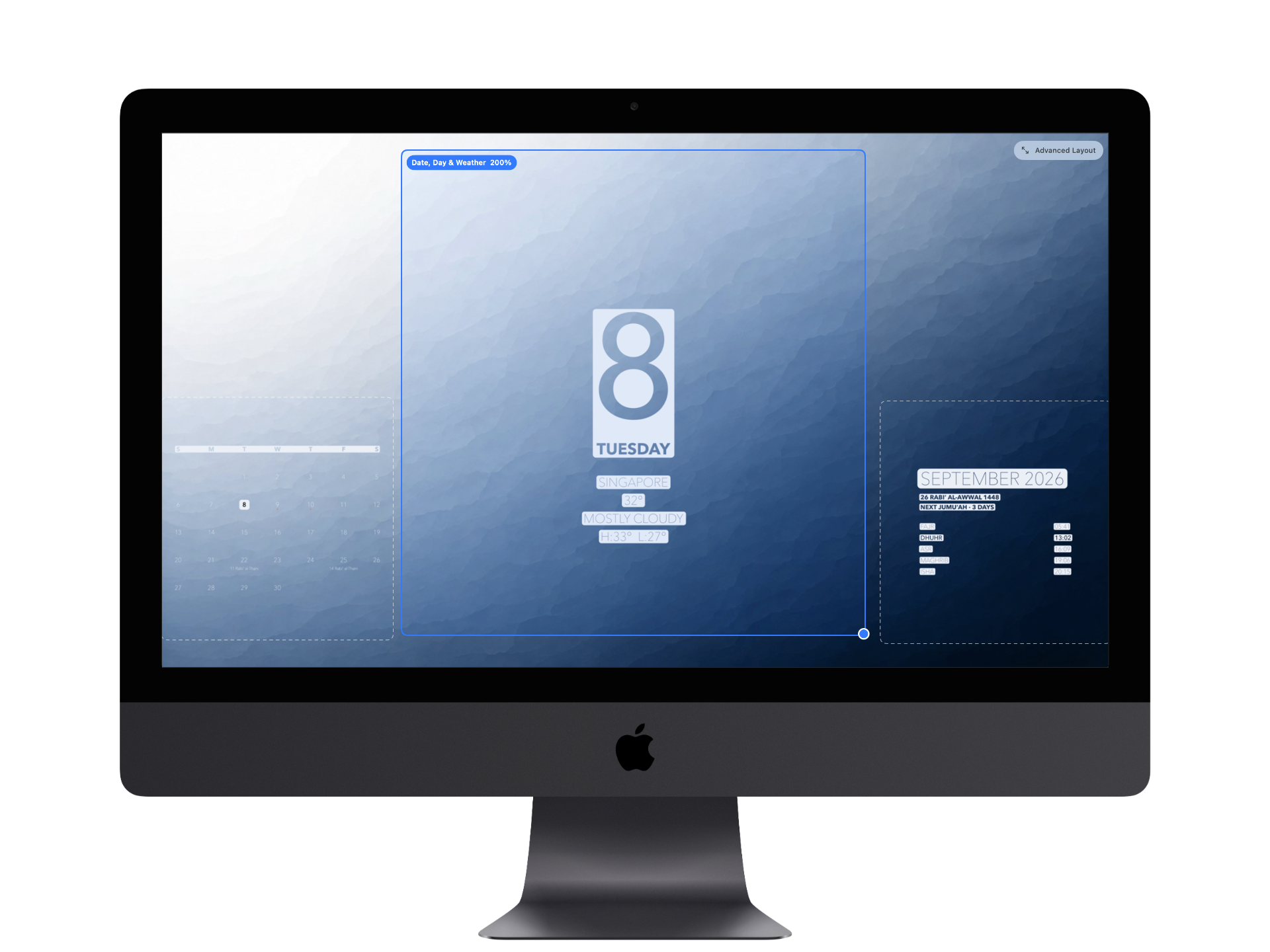
One clear workflow
Start in the Wallpaper tab. Choose the display you’re editing, then work through the background, content and layout controls. Your desktop changes when you press Apply.
Your wallpaper content
Each of the eight content items has its own Show control. Weather appears with Date & Day. When enabled, calendar context adds details beneath Month & Year and special-day labels beneath calendar dates.
Select one Calendar Context at a time: Islamic, Jewish, Christian or Public / Cultural. Islamic is the default selection. For Public / Cultural, choose an Apple calendar’s all-day events or OpenHolidays for a supported country.
Today’s date and weekday, with optional location, temperature and weather conditions.
A monthly calendar, with optional coloured event dots and special days from your chosen context.
The month and year, with optional calendar context below. Islamic context can also show the day’s five prayer times.
Today’s events and upcoming appointments from your selected Apple calendars.
Bring content from Apple Notes onto your wallpaper.
See selected reminders directly on your wallpaper.
A glance at your latest emails from Apple Mail.
Optional Awake status and system metrics on your desktop.
Readability
Let BackDrop choose the contrast, or select Light or Dark yourself. Set an individual content item differently when needed, and add a backplate for extra separation.
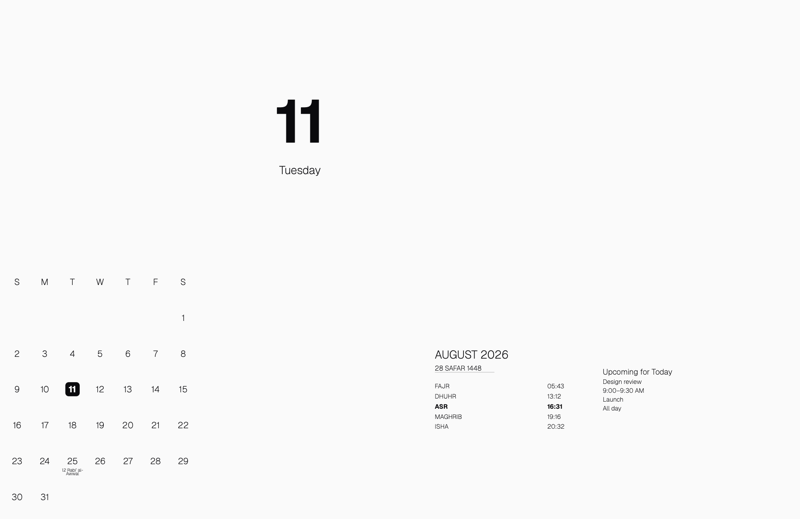
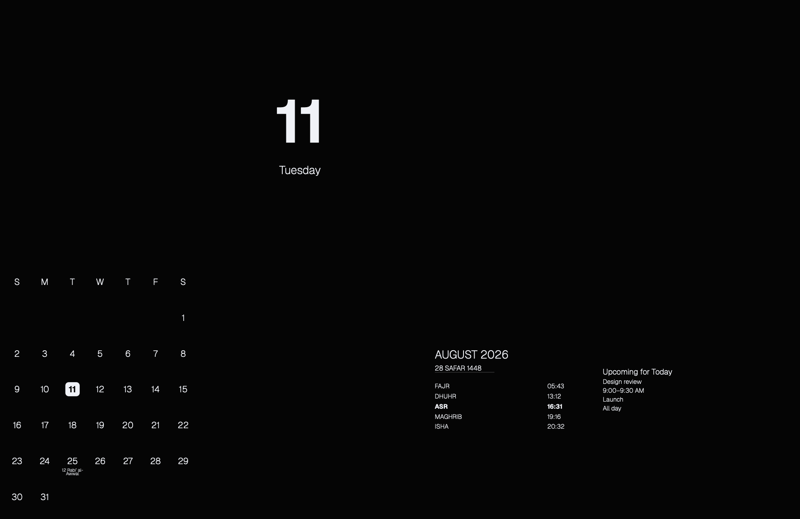
Standard and Advanced
Standard gives you eight positions to choose from. Advanced lets you drag content groups within the preview and scale them from 50% to 200% in 10% increments.
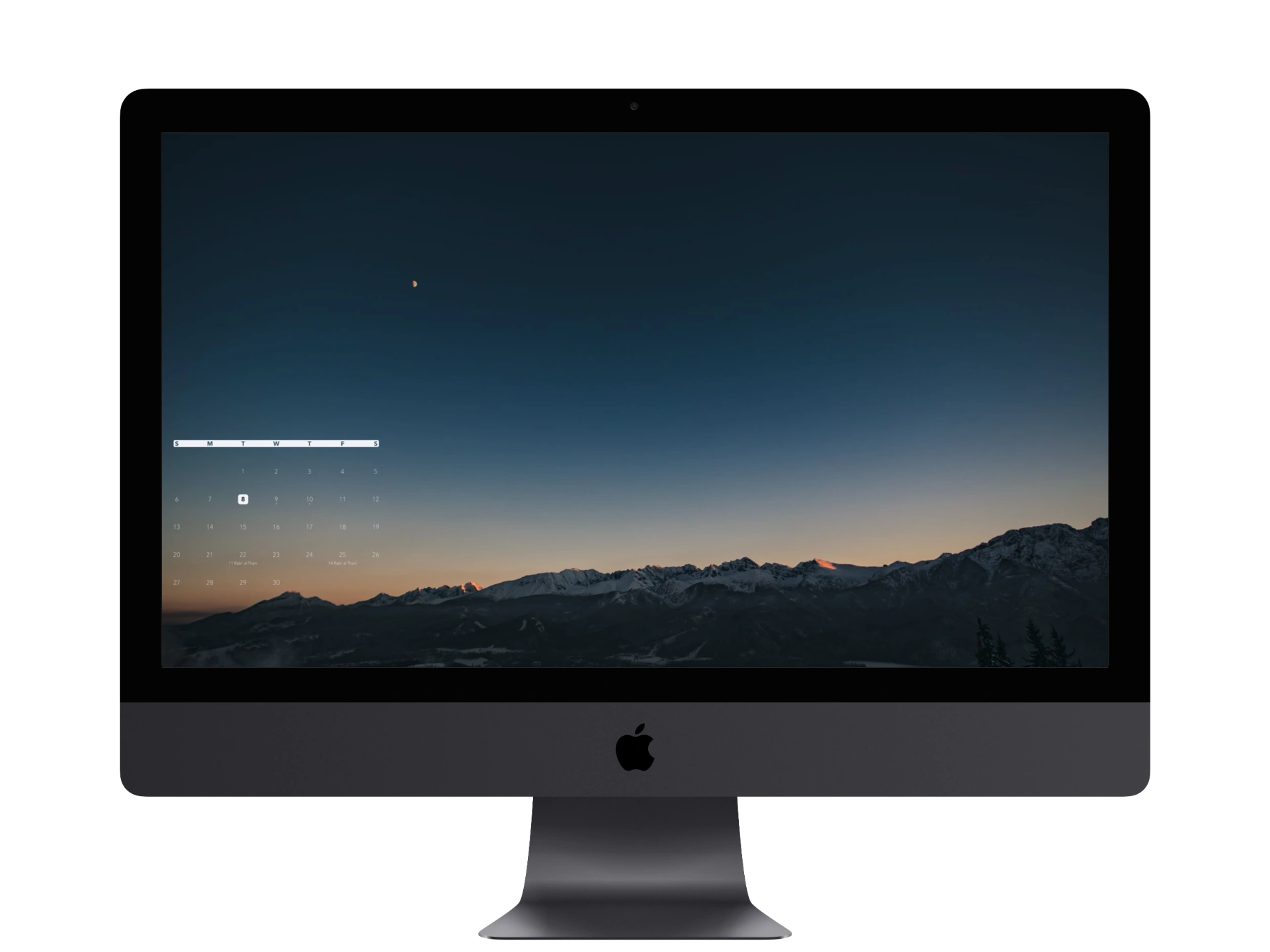
Awake keeps your Mac and display awake during a manual session, subject to power and safety limits. Start or stop a session in Awake. Apply Wallpaper controls the information shown on your desktop; hiding the Awake status does not stop the session.
Up to three active displays can each have their own background, visible content and wallpaper layout.
See display support