Displays
One Mac. Up to three BackDrops.
Give up to three active displays their own background, visible content, contrast and layout. Use extended displays for independent wallpapers; mirrored screens are not configured separately.
A purpose for each screen
Put the right information on the right screen.
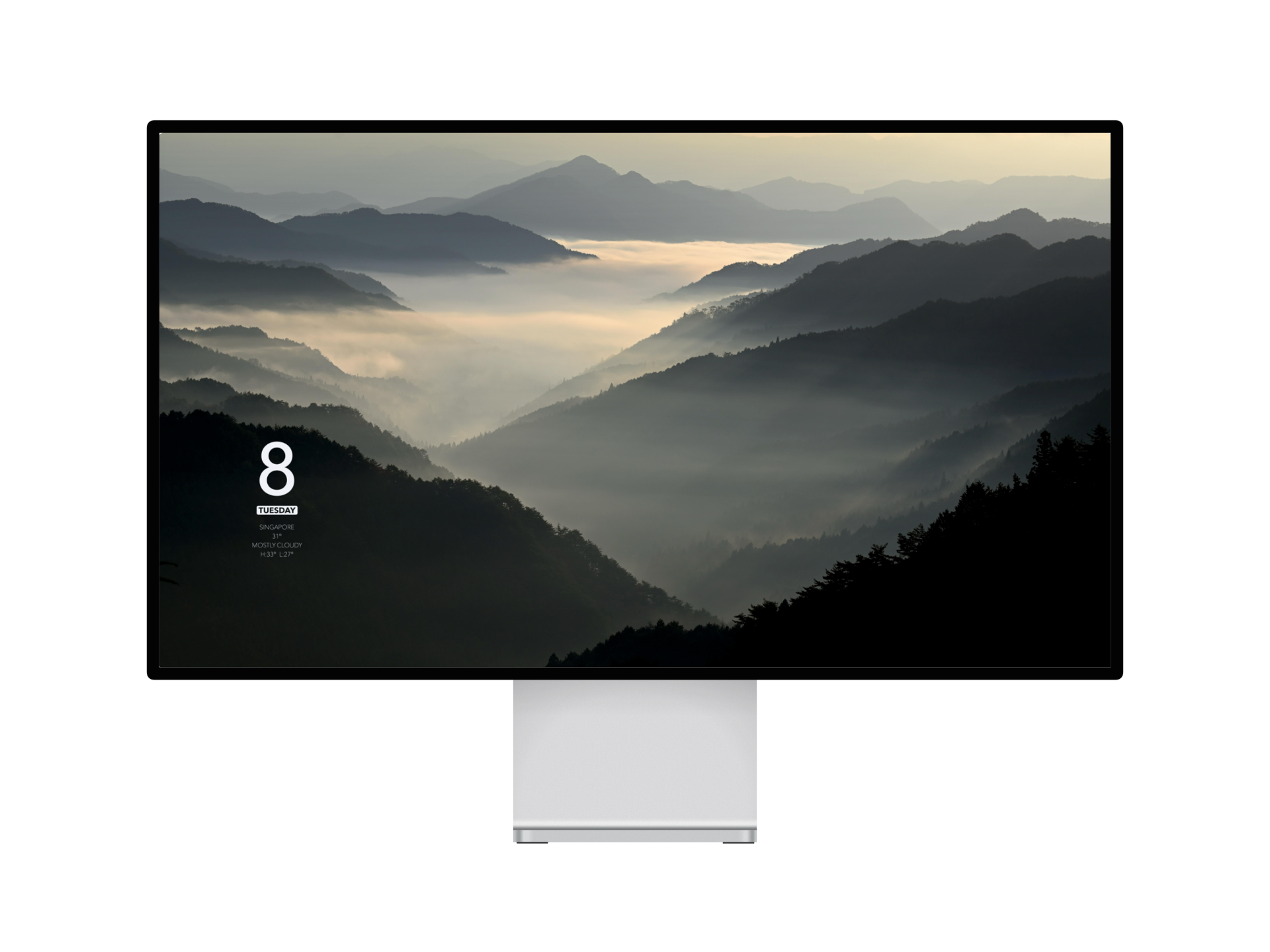
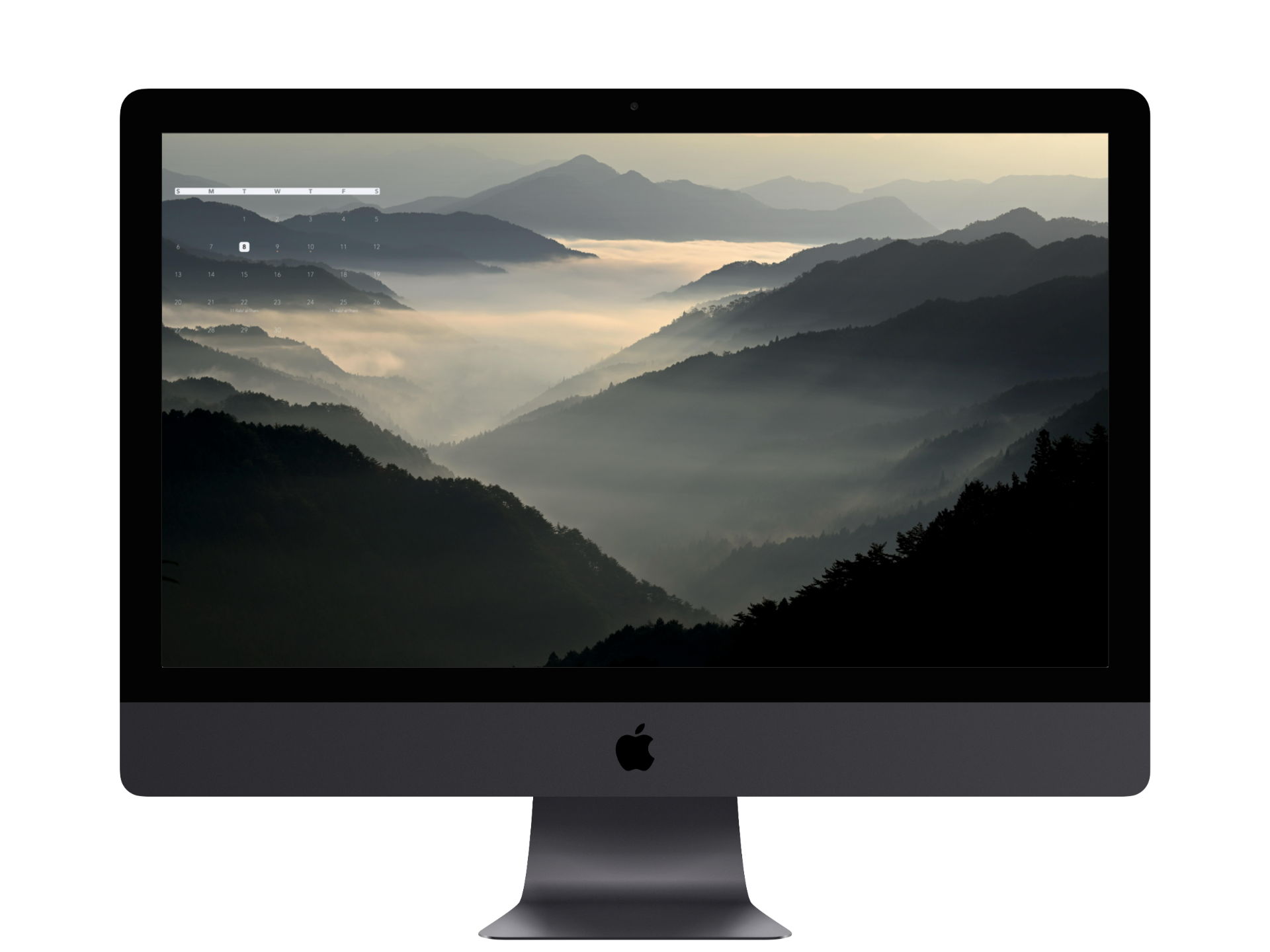
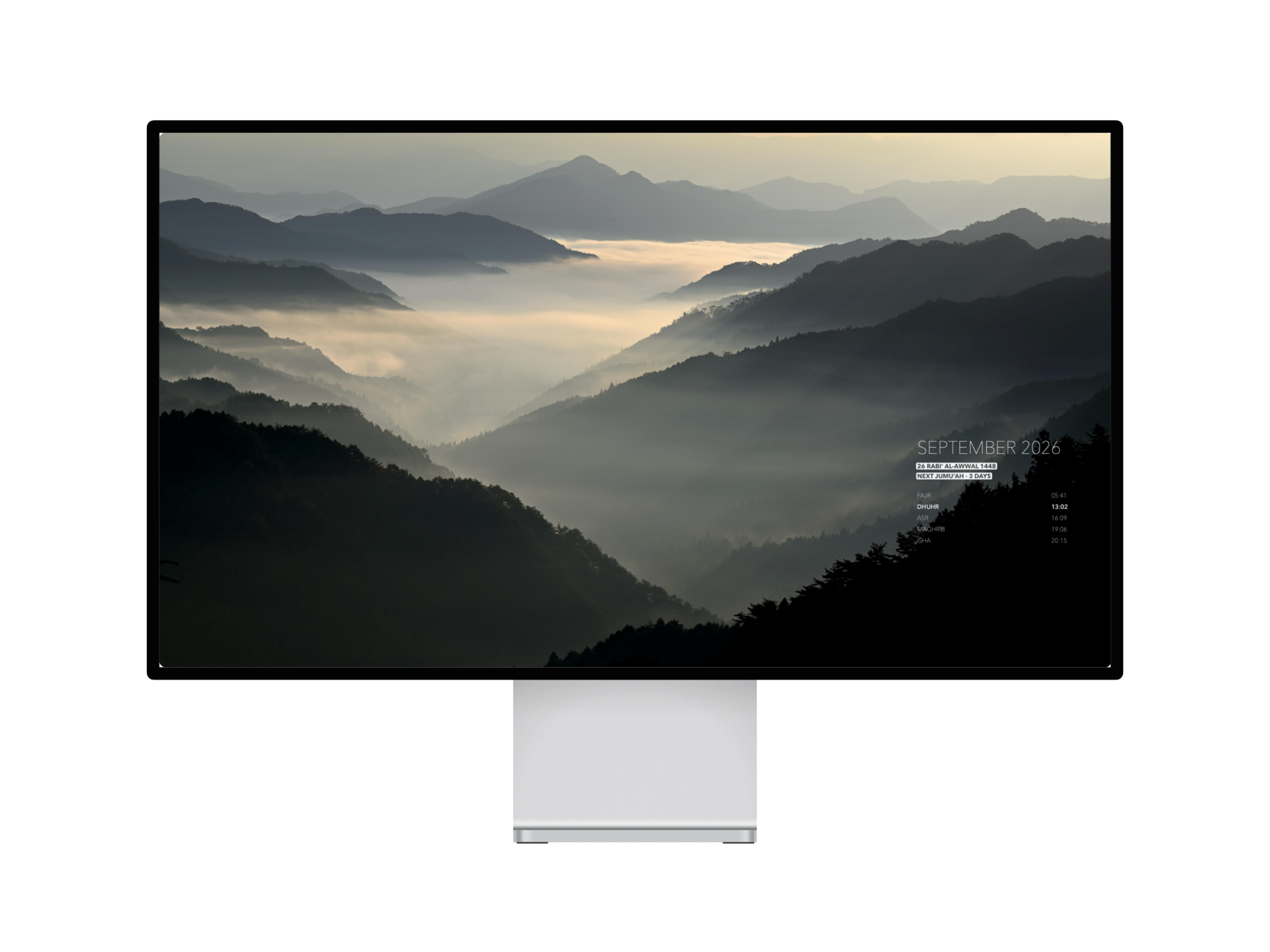
Keep your calendar on one screen, date and weather on another, and prayer times or upcoming events on a third. Choose how much information each display shows.
Start with the display selector
Choose the screen you want to change.
Use the Display selector to choose a monitor, then edit its wallpaper settings. The preview follows your selection. Switching monitors lets you work on each display’s background, visible content, contrast and layout.
- Select a displayChoose the monitor by its name in the Display selector.
- Compose its wallpaperChoose a background, enable content and arrange it in the preview.
- Apply to that displayReview the preview and press Apply. Closing the window or quitting discards unapplied wallpaper edits.
Layouts per display
A layout that fits each screen.
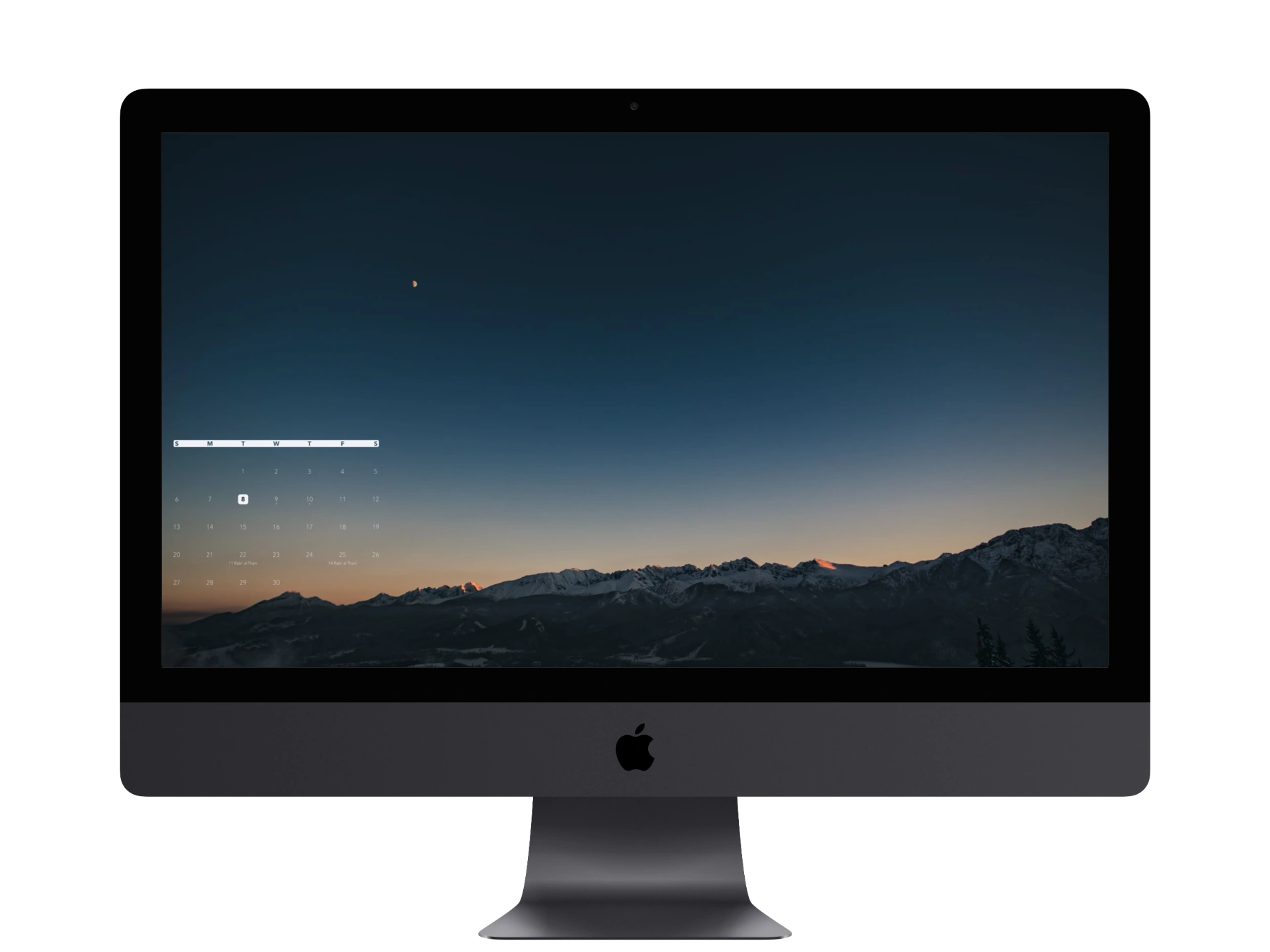
Use Standard to assign enabled content to eight slots. Choose Advanced to drag and scale content groups in the preview. Each supported display can use its own layout mode.
- Standard — Choose slots using the preview grid; hidden content leaves its slot empty.
- Advanced — Set positions and scale content from 50% to 200%.
- Reserved Areas — In Standard mode, keep selected edge regions clear of wallpaper content.
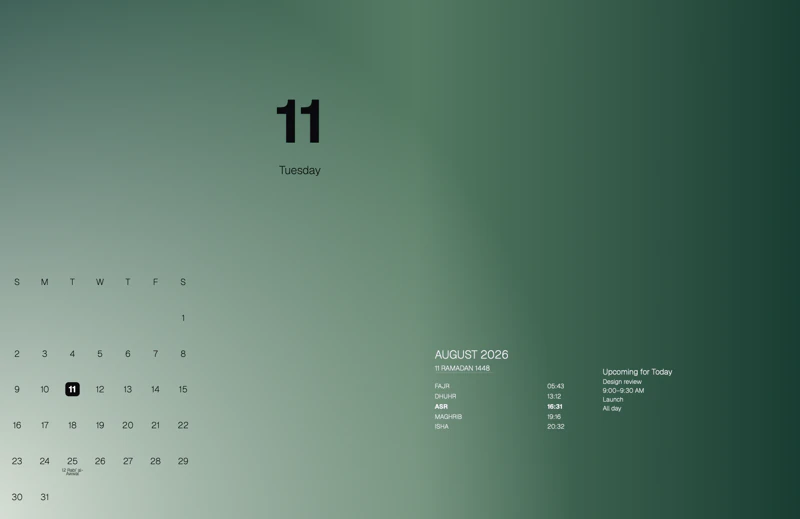
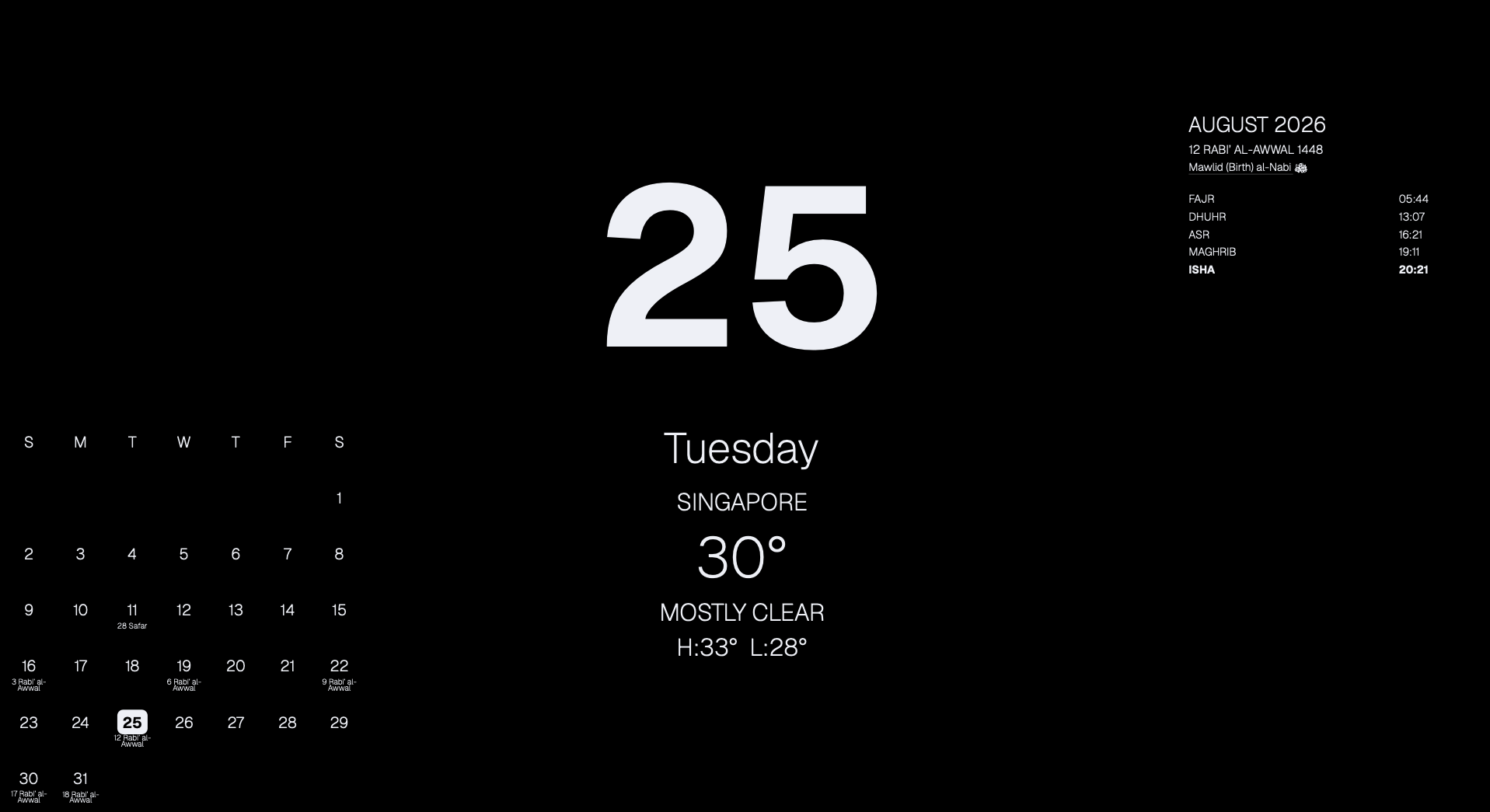
Choose what belongs on each screen, preview the result, and Apply when it is ready.